
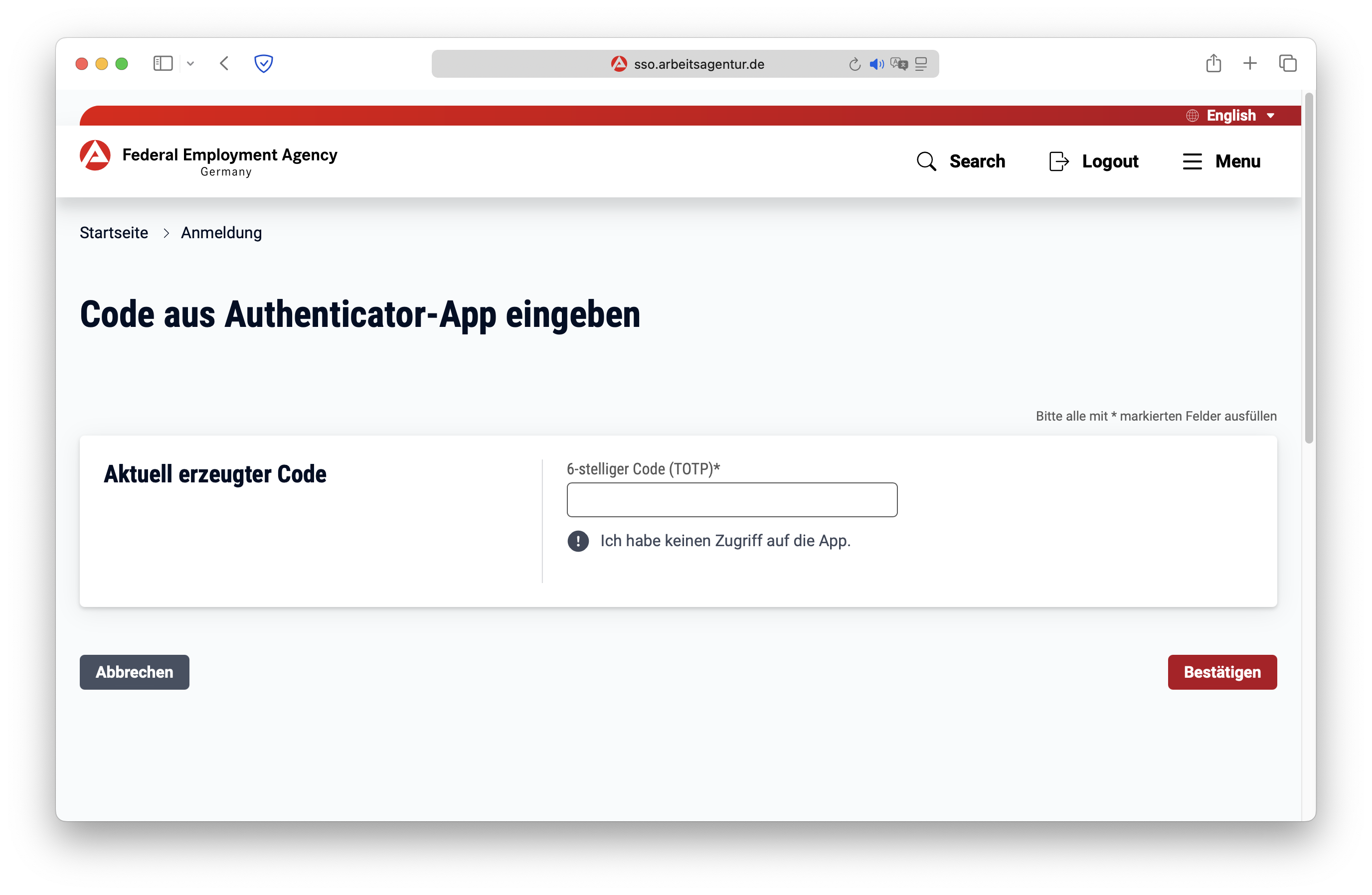
When registering on the arbeitsagentur.de website, you need to enable two-factor authentication. After activation, each time you log in, you'll need to enter your email address, password, and a one-time six-digit TOTP code. The code is generated in a special app (Authenticator) and changes every 30 seconds.
Setting up TOTP
Setting up on a smartphone
Install the official TOTP Authenticator app—it's required to generate codes. The app is available for iOS on the App Store and for Android on Google Play.
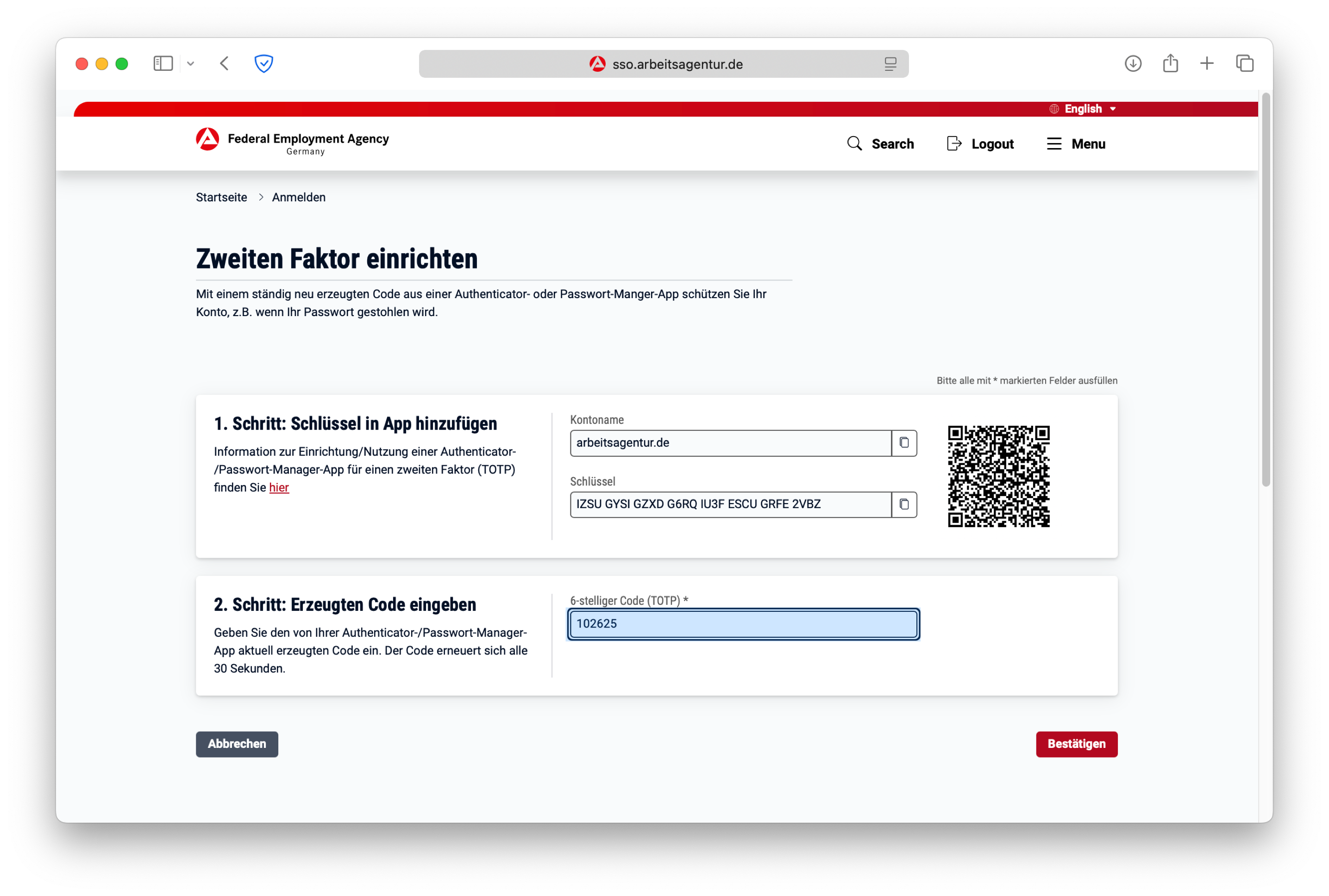
During registration, select the option «Zweiter Faktor einrichten», the most secure way to protect your account.
The service will provide you with a unique 32-character secret key. Never share this key with others to avoid unauthorized account access.
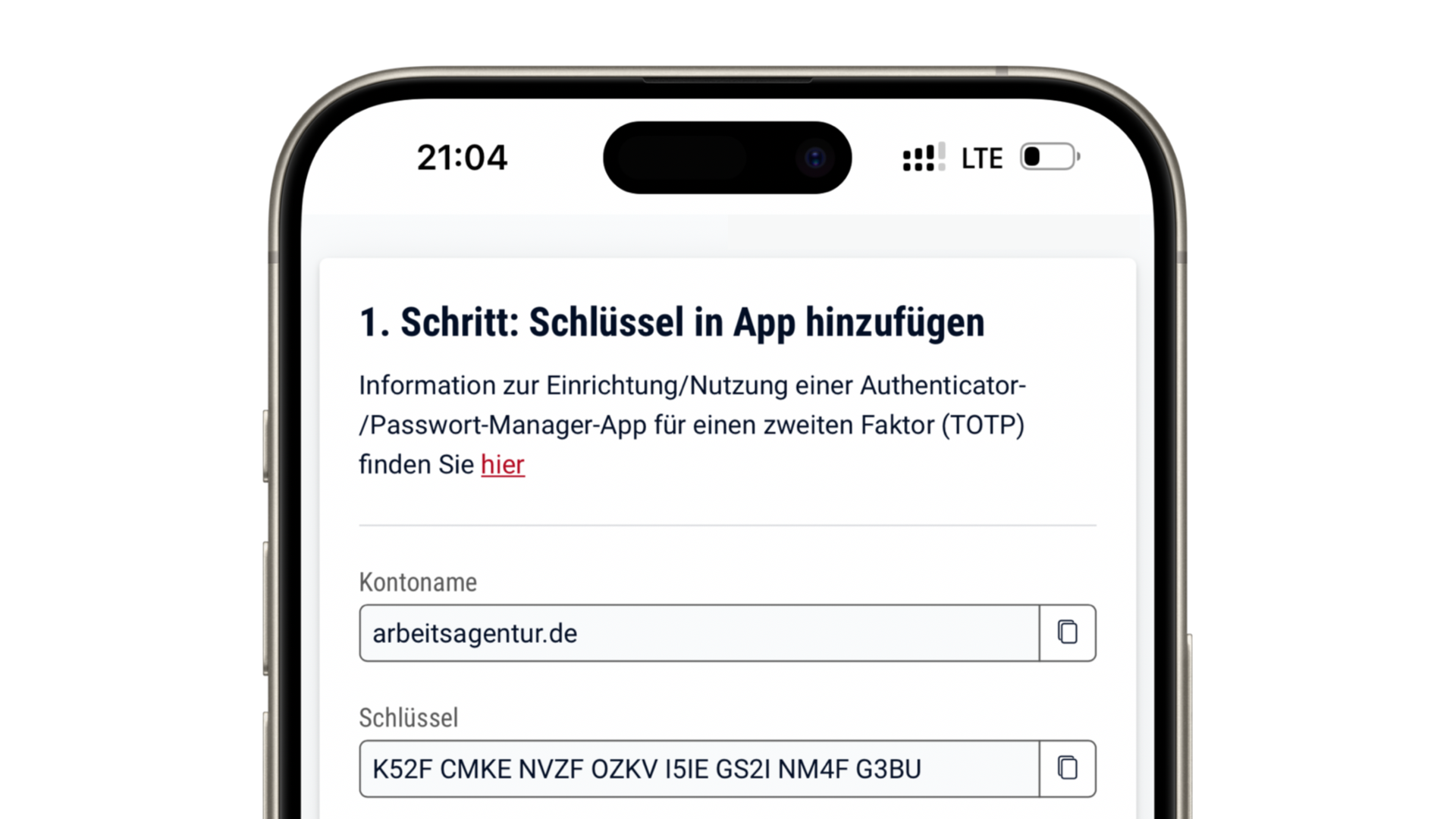
Enter this key into the installed Authenticator app. The app will then generate TOTP codes for your account based on this key.
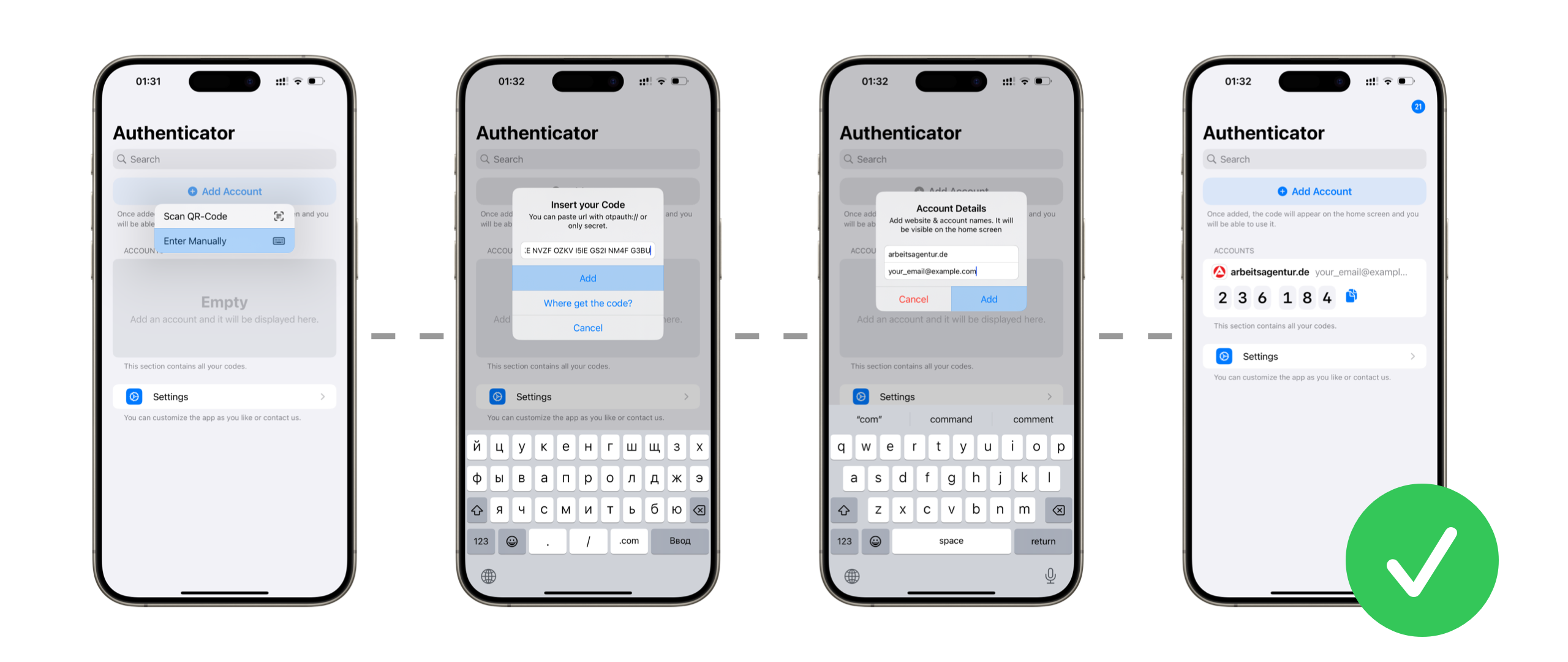
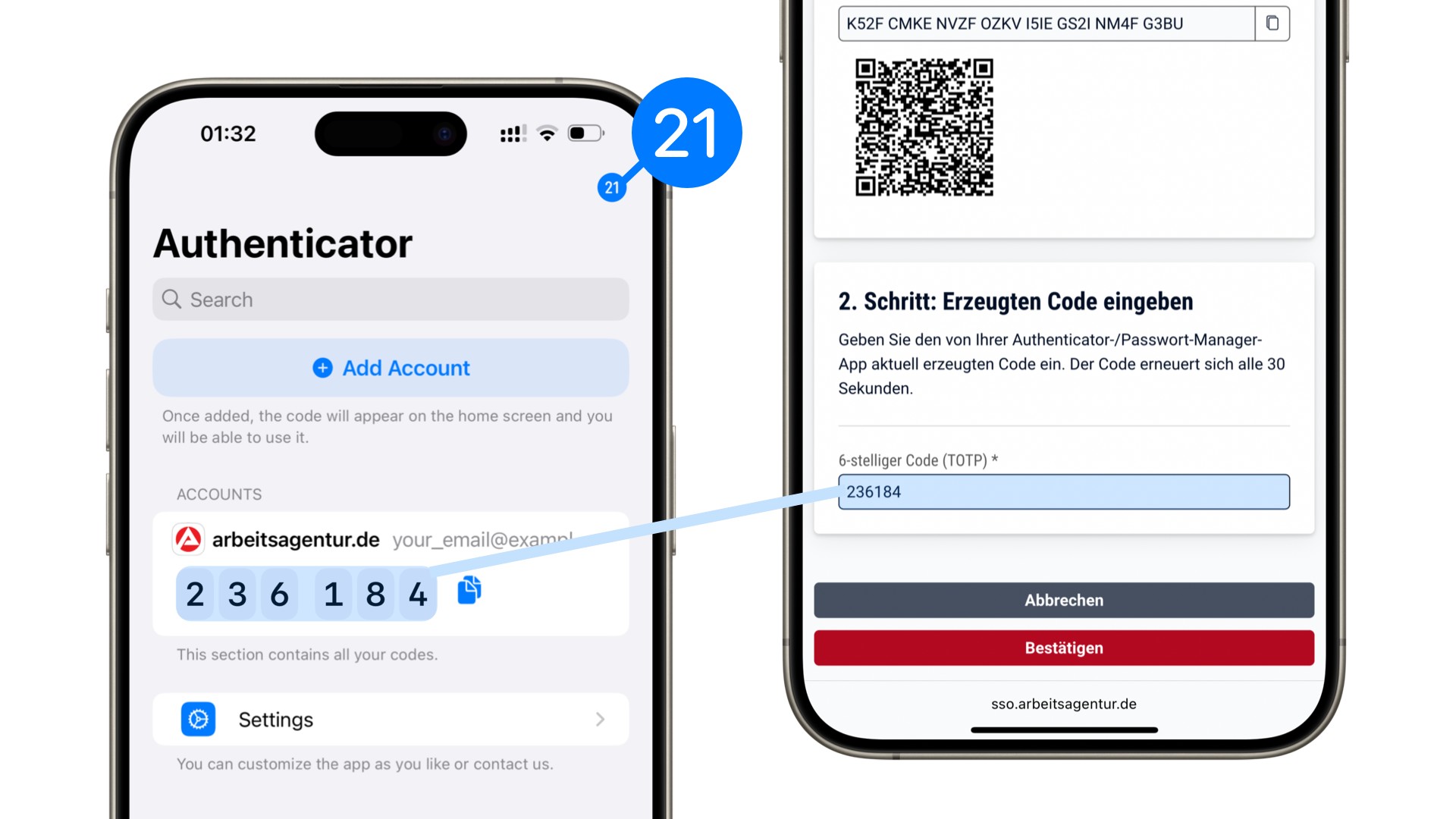
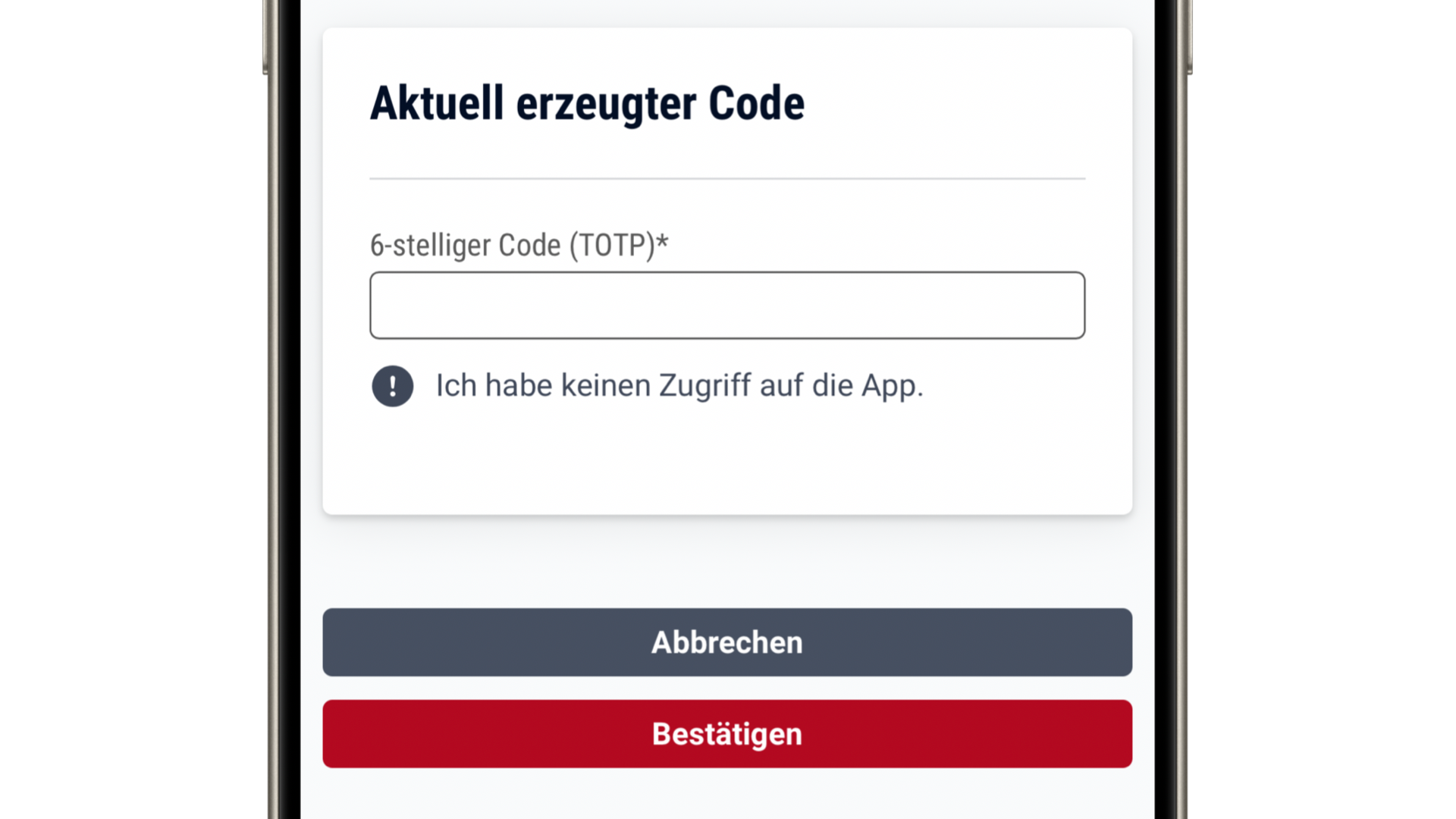
Enter the code from the Authenticator app into the appropriate field on the Federal Employment Agency website. Keep an eye on the timer: the code will change once the time expires. Make sure to enter the code and click «Bestätigen» before it expires.
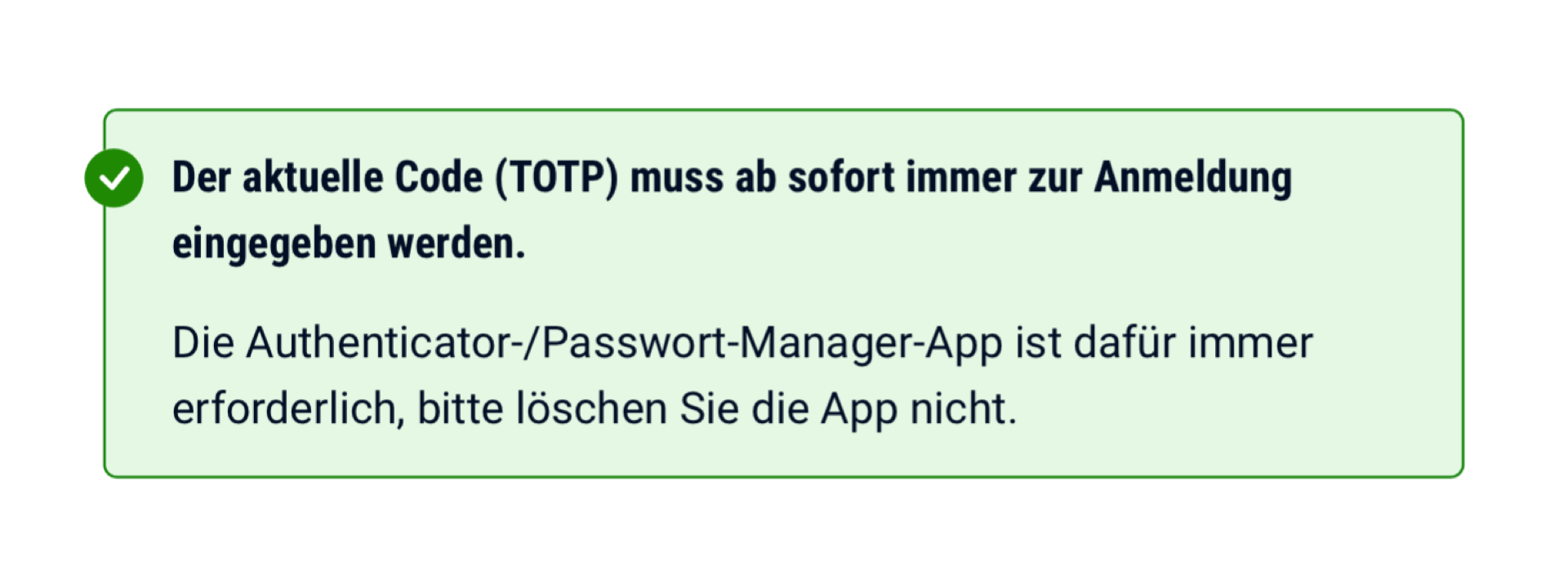
You will see a notification once the two-factor authentication is successfully enabled.
Done. Now, whenever you log in, you'll need to enter your login, password, and the one-time TOTP code from the app.
Setting up on a computer
Install the official TOTP Authenticator app—it's required to generate codes. The app is available for iOS on the App Store and for Android on Google Play.
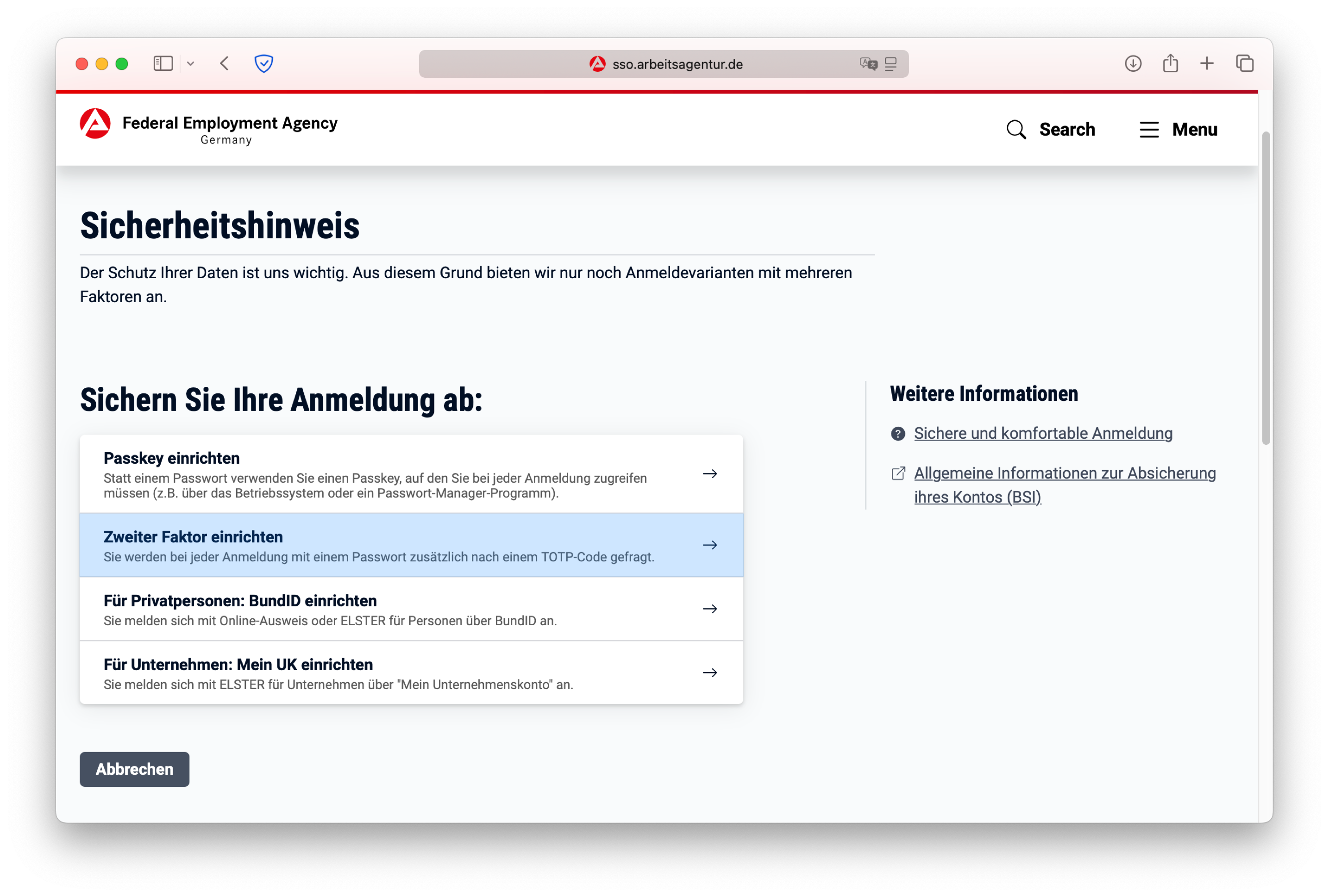
During registration, select the option «Zweiter Faktor einrichten», the most secure way to protect your account.
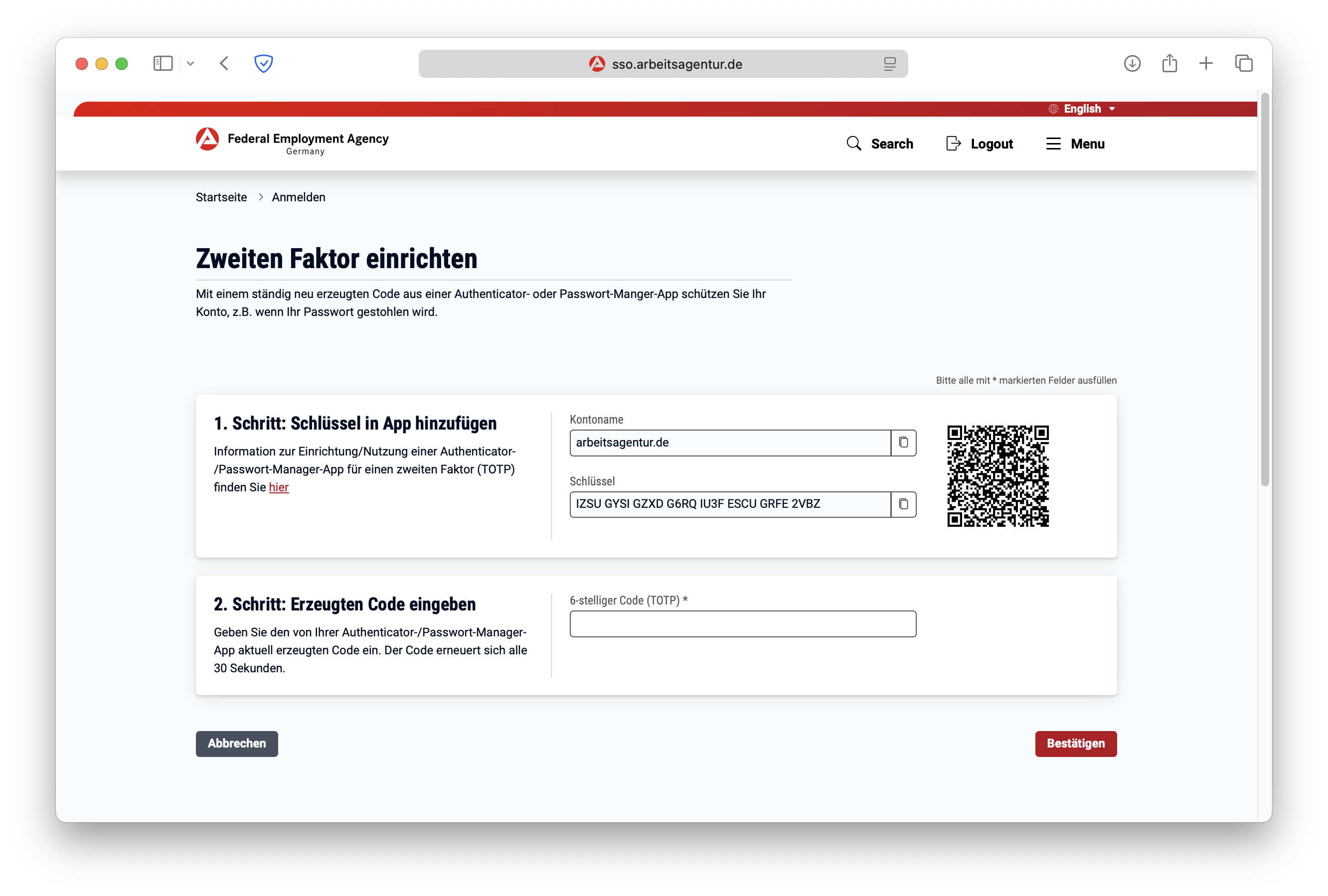
You will see a QR code with a secret key.
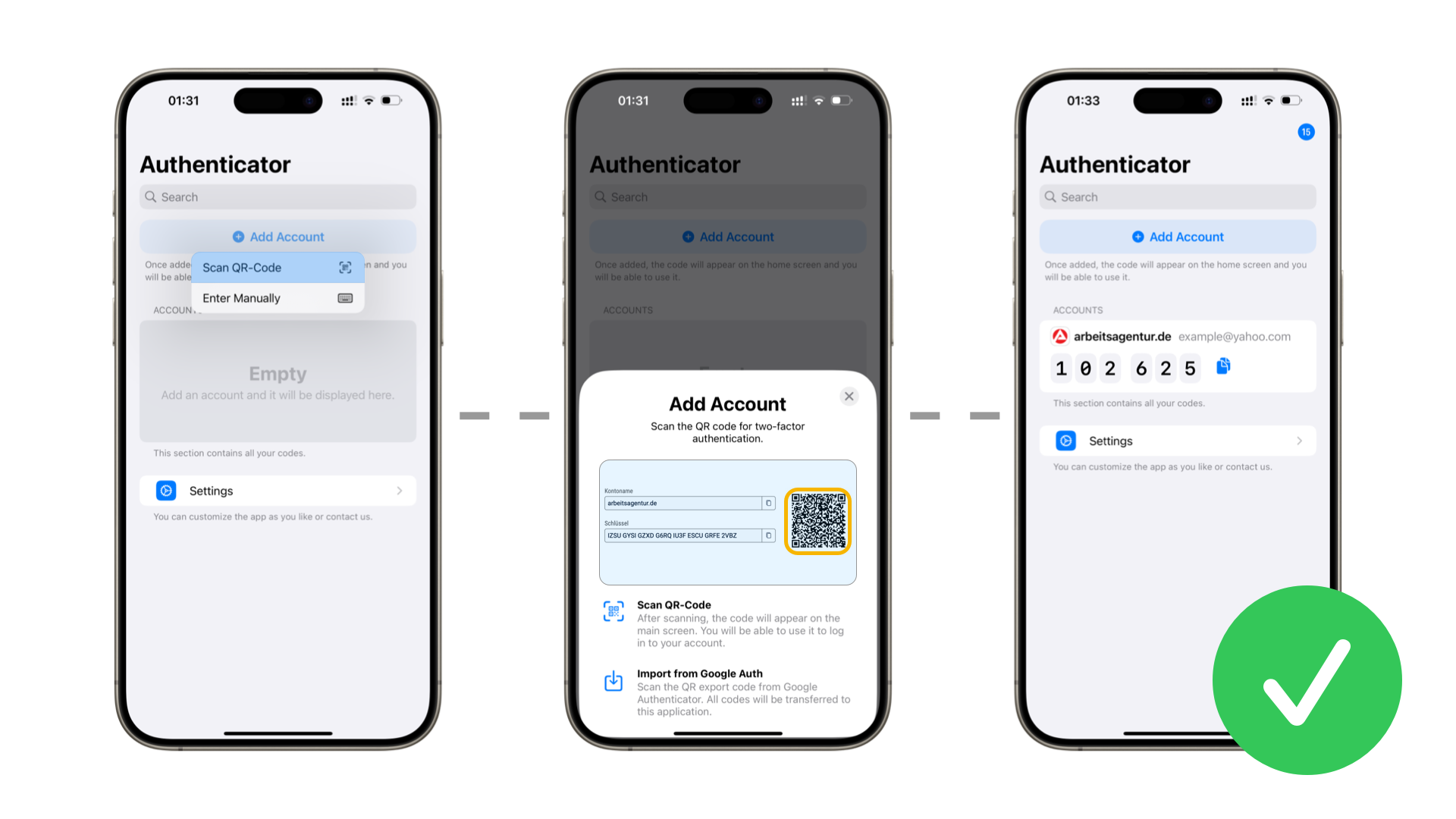
Scan this QR code using the Authenticator app. The app will then generate TOTP codes for your account based on this key.
Enter the code from the app into the «Bestätigungscode» field. Pay attention to the timer in the Authenticator app: the code will change once the time expires. Make sure to enter the code on the arbeitsagentur.de website before it expires.
You will see a notification once the two-factor authentication is successfully enabled.
Done. Now, whenever you log in, you'll need to enter your login, password, and the one-time TOTP code from the app.
This tutorial is updated regularly. If you have questions about authentication, feel free to email us at support@totp-authenticator.com.