
TOTP is a one-time 6-digit code generated in a special application (authenticator) and updated every 30 seconds. It is entered on the website after your username and password. It protects your account from hacking.
It is mandatory for logging in and using KAU services. In this guide, we explain how to enable TOTP.
Setting up TOTP
How to connect on a computer
We recommend using this method since the service only provides a QR code for setup. If this is not possible, proceed to the next section.
Install the official TOTP Authenticator app — you will need it to generate codes. Available for iOS in the App Store and for Android in Google Play.
Log in to the KAU website through the login page.
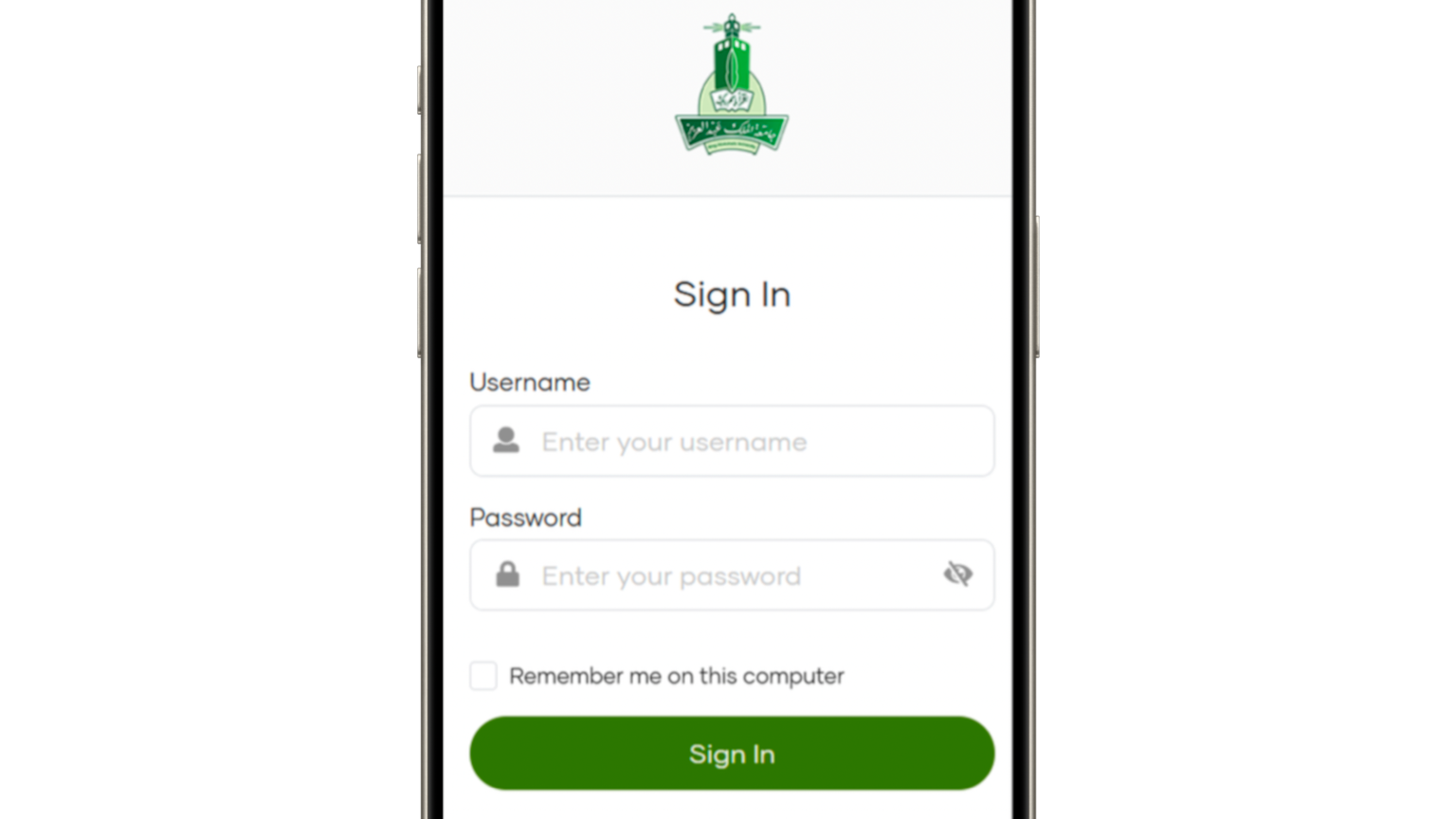
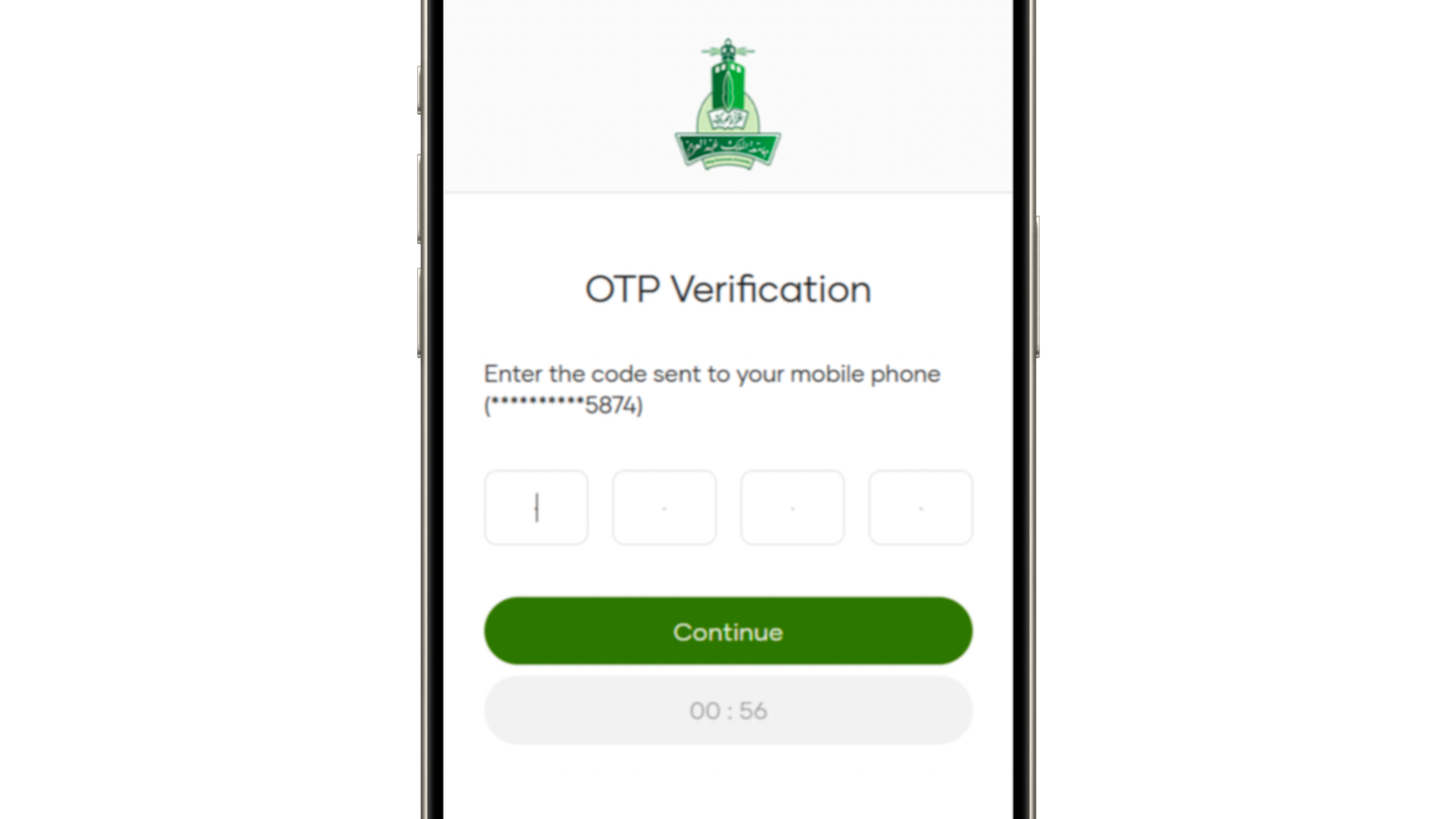
After logging in, you will receive an SMS with a code. Enter it to continue the TOTP setup.
A QR code with a secret key will appear.
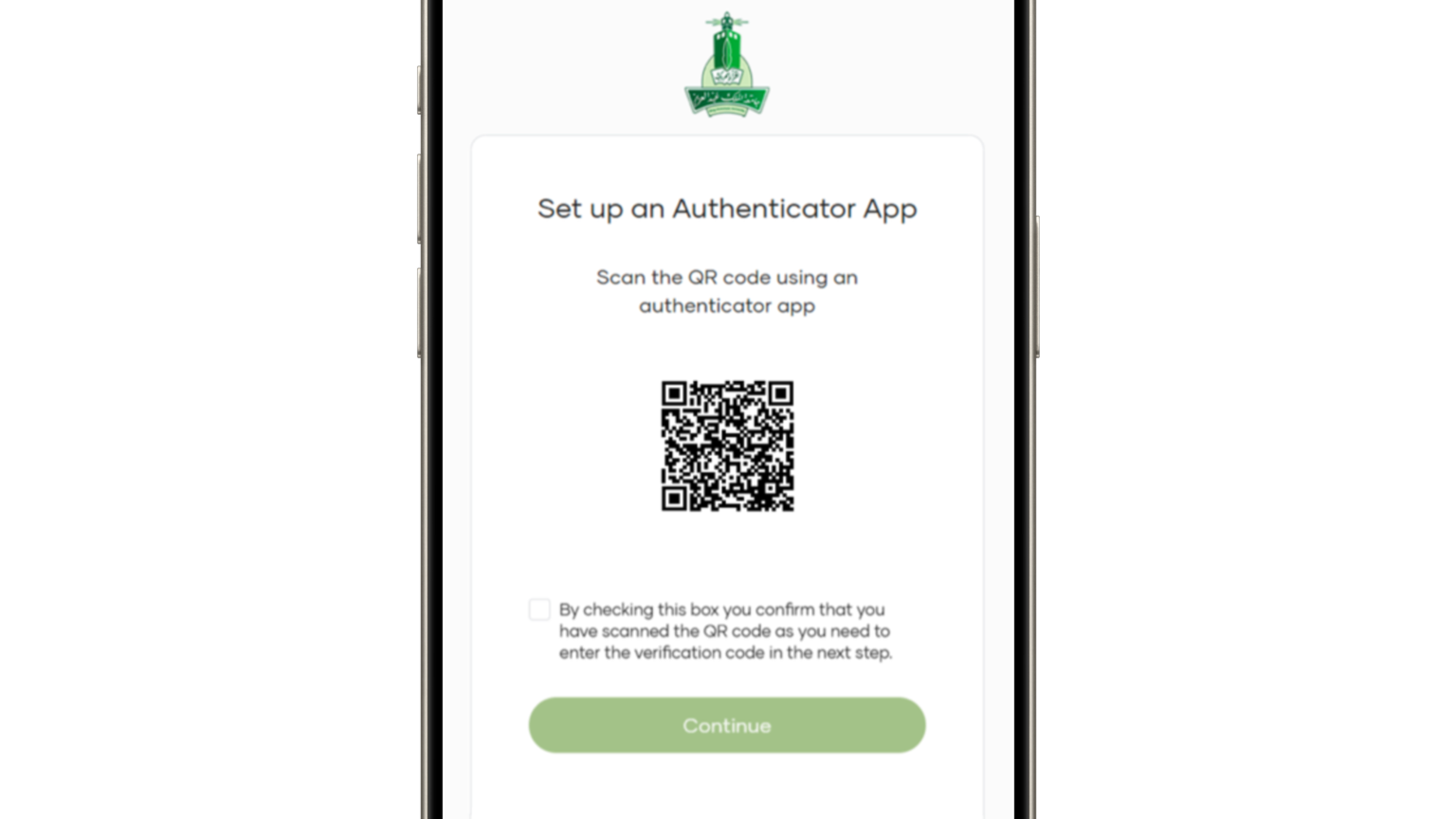
You need to scan the QR code with the authenticator app. After that, the authenticator will generate TOTP codes for your account. Check the box and click the green “Next” button.
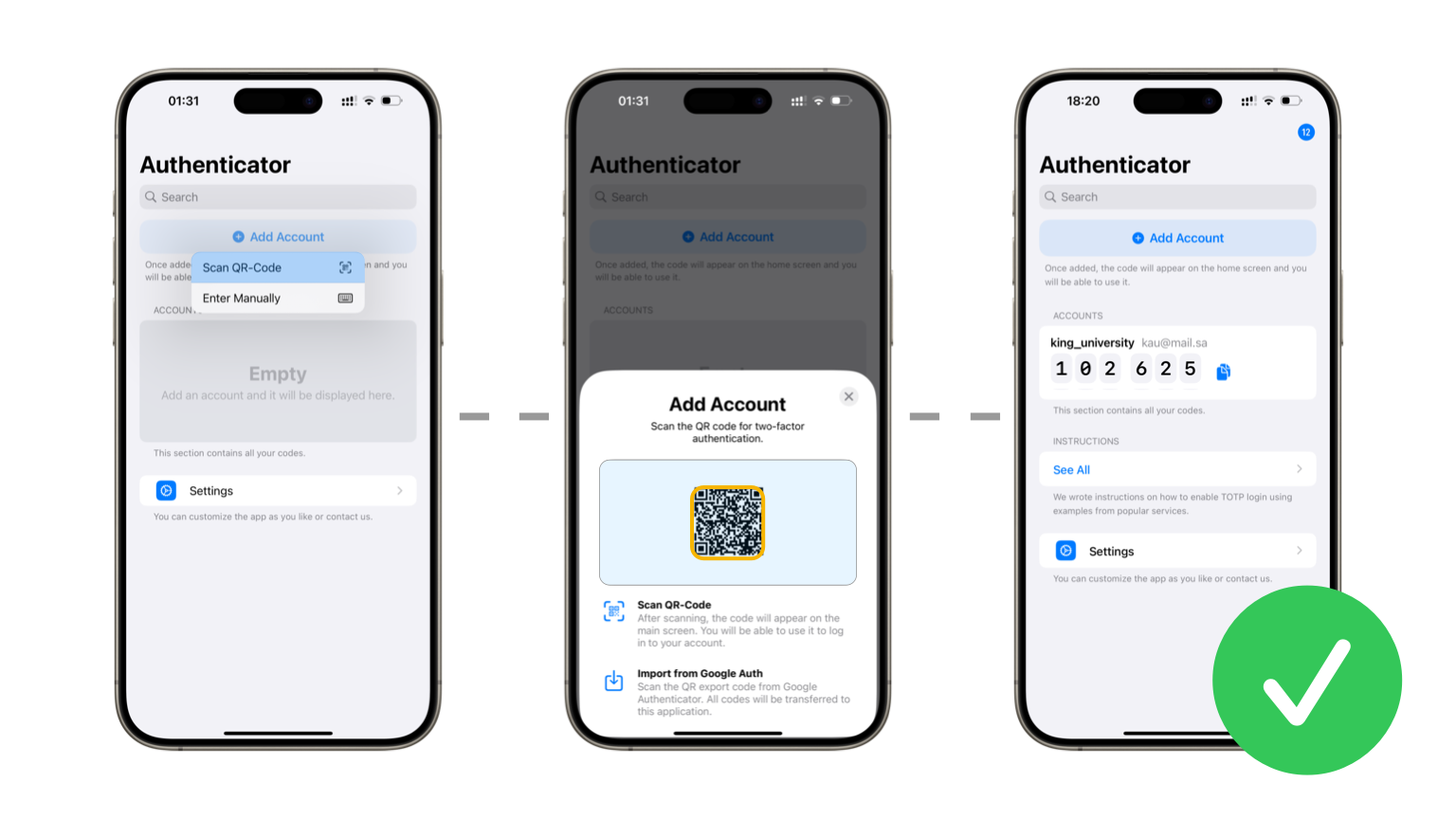
Enter the code from the app into the “Confirmation code” field. Pay attention to the timer in the authenticator: when the time runs out, the code will change. You need to enter the code before it expires.
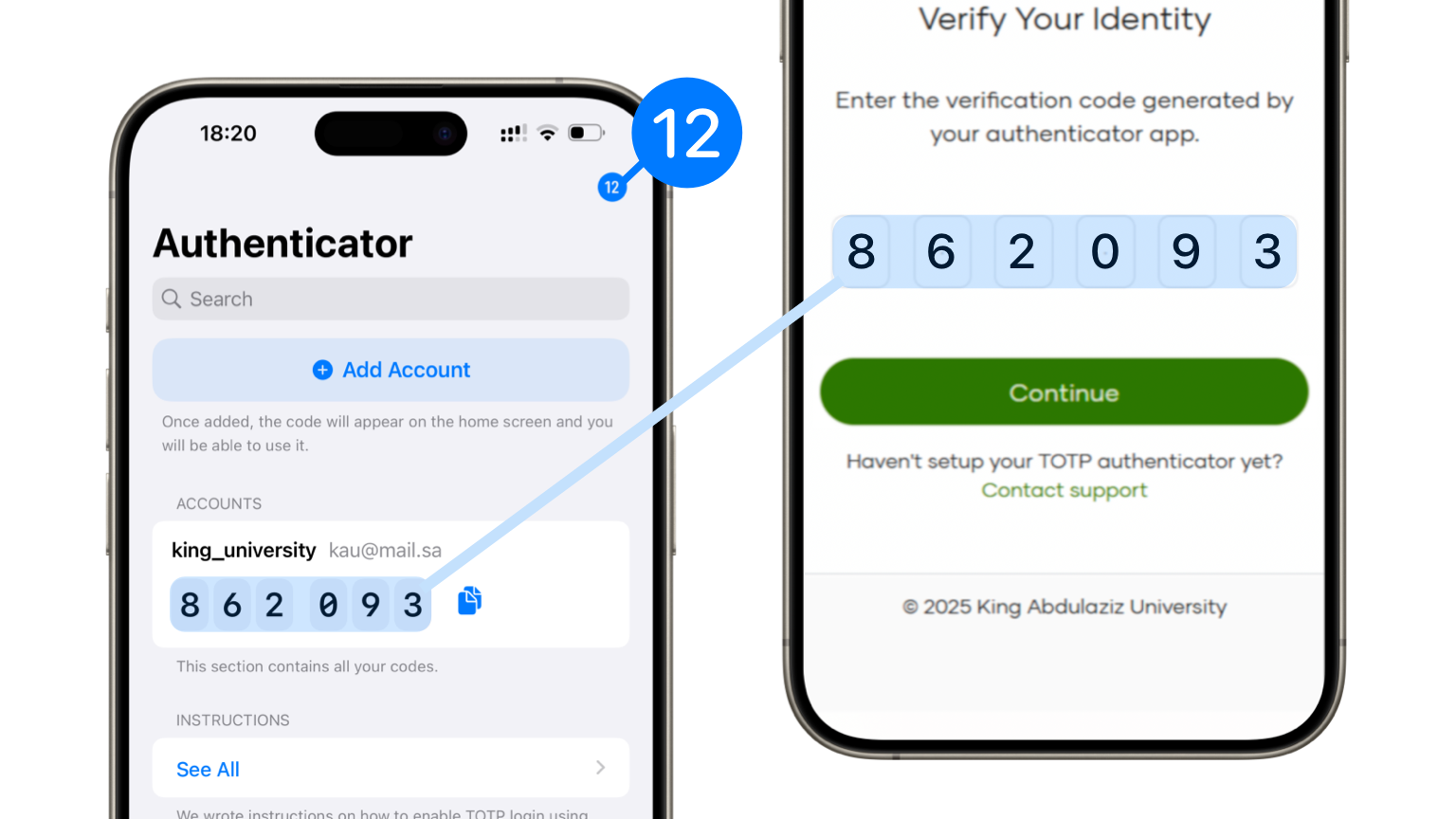
Done. Now, when logging into your account, you will need to enter your username, password, and a one-time TOTP code from the app.
How to connect on a smartphone
Install the official TOTP Authenticator app — you will need it to generate codes. Available for iOS in the App Store and for Android in Google Play.
Log in to the KAU website through the login page.
After logging in, you will receive an SMS with a code. Enter it to continue the TOTP setup.
A QR code with a secret key will appear.
If you have another device nearby, such as a tablet or a friend’s phone
We recommend sending a screenshot to another device and scanning it. If this is not possible, proceed to the next section.
Send the screenshot with the QR code to another device.
Now scan the QR code with the authenticator app. After that, the authenticator will generate TOTP codes for your account. Check the box and click the green “Next” button.
Enter the code from the app into the “Confirmation code” field. Pay attention to the timer in the authenticator: when the time runs out, the code will change. You need to enter the code before it expires.
Done. Now, when logging into your account, you will need to enter your username, password, and a one-time TOTP code from the app.
If no other device is available
Take a screenshot of the screen with the QR code. Go to Zxing website — with its help we will extract the secret key to add the account manually to the authenticator.
Upload your screenshot and click “Submit”.
Copy the link that appears on the screen.
Add the link with the key into the installed authenticator app. After that, the authenticator will generate TOTP codes for your account. Check the box and click the green “Next” button.
Enter the code from the app into the “Confirmation code” field. Pay attention to the timer in the authenticator: when the time runs out, the code will change. You need to enter the code before it expires.
Done. Now, when logging into your account, you will need to enter your username, password, and a one-time TOTP code from the app.